Roomvo Kiosk resource center
Power up sales with visualization magic
Welcome to your Roomvo Kiosk resource hub — your key to unlocking the full potential of Roomvo Kiosk. Here, we've curated a list of invaluable resources to empower you on your journey to becoming a Kiosk power user. Discover how-to guides, answers to frequently asked questions, video tutorials, and more. Explore, learn, and elevate your experience to new heights — we're here to guide you every step of the way.
Why should I use it?
Using Roomvo Kiosk in every sales conversation delivers:
.svg "chart-line-up-light (3)")
Up to 5x more conversions
Bring products to life and give customers the confidence to commit.

Endless aisle capability
Show your entire product suite, not just what you have in-store.
.svg "smiley-light (1)")
Memorable shopping experiences
Keep customers in the store longer with its engaging and interactive experience.
When to use it

As a discovery tool
The Roomvo Kiosk helps shoppers explore and discover all relevant options, allowing them to quickly and easily experiment with new looks, colours, styles, and materials in their space to find the perfect look.
.svg "handshake-light (1)")
As a closing tool
When customers have narrowed down their options, the kiosk will support them by showing product options side-by-side in their space, helping them make a final decision faster.
How to use it

Browse Catalog
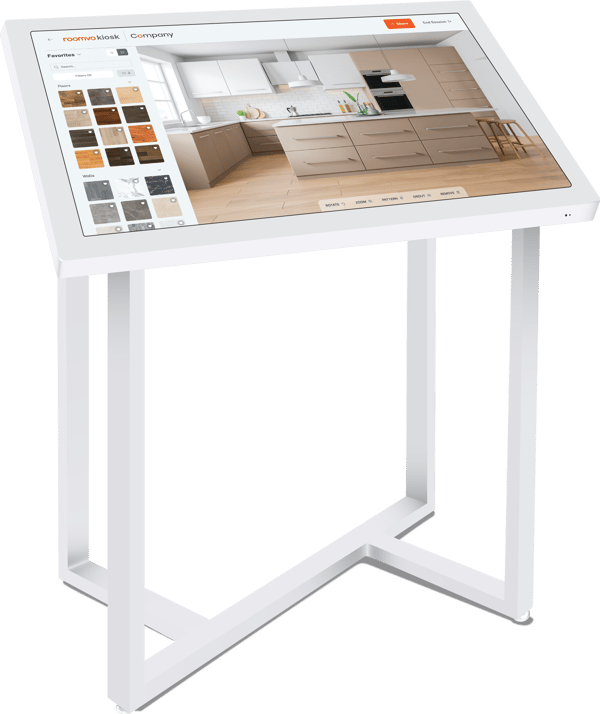
On the left hand-side of the unit you will see the Browse Catalog section. From there users (either yourself or shoppers) can enter the store's full online catalog.
Users can search to find a specific product or browse using the built-in filtering options. After shoppers have found a product match, they can upload a photo of their room or use a pre-set room scene to visualize their chosen product.
Want to see this in action check-out our How to videos.
Scan Samples
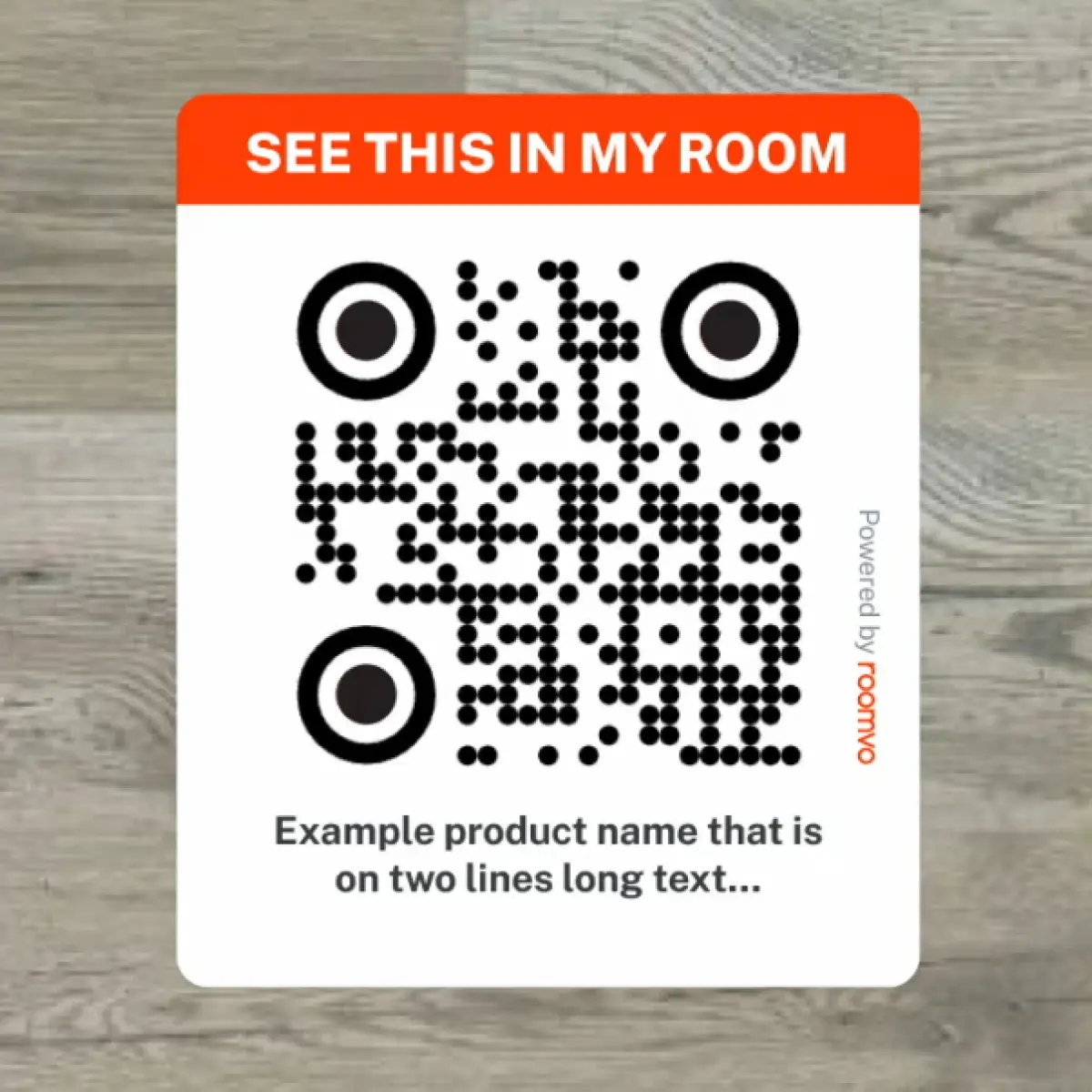
On the right hand-side of the screen you will see the Scan Samples section. Here users (either yourself or shoppers) can scan QR codes that are placed on samples in the store allowing customers to create their own list of curated favorites.
When a user enters this section of the Kiosk, a QR code will immediately appear on the screen. Scanning it with a mobile device enables the device to be used as a scanner throughout the showroom. Grant permission for the device's camera when prompted, or the scanning won't work.
After scanning each QR code, the product is added to the kiosk's favorites list. When all samples are scanned, shoppers can upload a photo of their space or choose one from pre-set rooms.
Want to see this in action check-out our How to videos.
FAQ
How do I get started with the Kiosk?
- Turn the Roomvo Kiosk on and launch the Roomvo Kiosk app from the menu.
- Enter your Roomvo ID (this could be pre-filled if used before).
- The Roomvo Kiosk is now ready to use.
What do I do if I do not have my Roomvo ID?
Email your Roomvo Rep or support+pro@roomvo.com for assistance.
How can I add more products to my Roomvo Kiosk?
Roomvo works with more than 150 of the world’s leading home decor brands. To add brands to your Roomvo Kiosk from our directory, you can do so here. If you don't see a brand that you work with, you can request new suppliers to be added by emailing your Roomvo Rep or support+pro@roomvo.com.
Is Roomvo Kiosk secure?
Yes, the Roomvo Kiosk app doesn’t store data on the device itself, so all customer data will be wiped as soon as “End Session” has been selected.